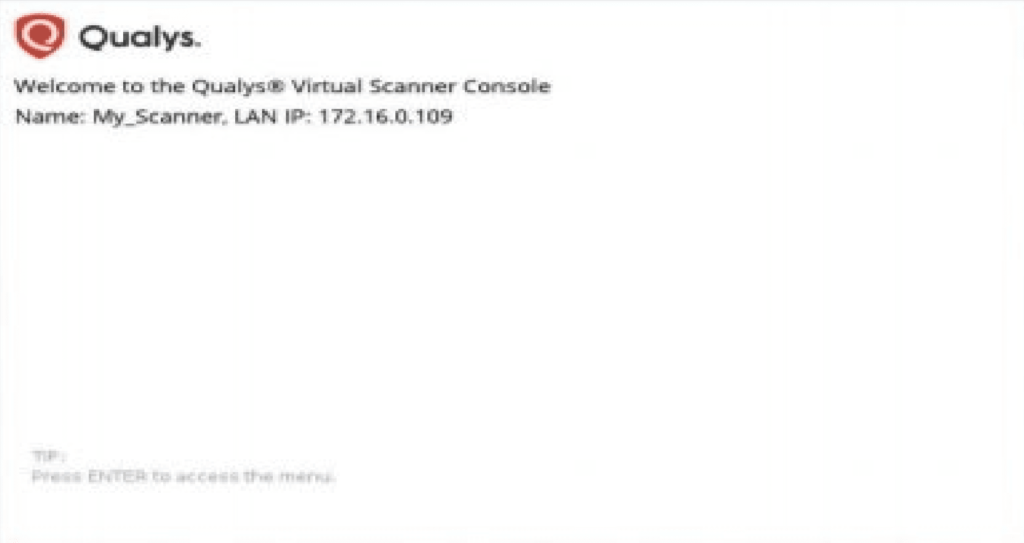
The Virtual Scanner Appliance must be installed on a virtualization platform such as HyperV, VMware, XenServer, Fusion etc. Virtualization can be achieved by repurposing a PC and installing a free virtualization platform such as Workstation or Fusion. After installing the Virtual Appliance, please follow the below steps to configure the scanner.
- Download virtual scanner appliance image* from the Contractor’s hosted site <<<New Link>>>.
- *The image is compatible with VMware, Fusion and other virtualization supported platforms.
- *The Contractor will Provide a Personalization Code via email to the designated PSAP personnel.
- Install and Load OVA file (*image).
- Power on Virtual Machine you created in step 2.
- *Scanner is automatically configured with DHCP
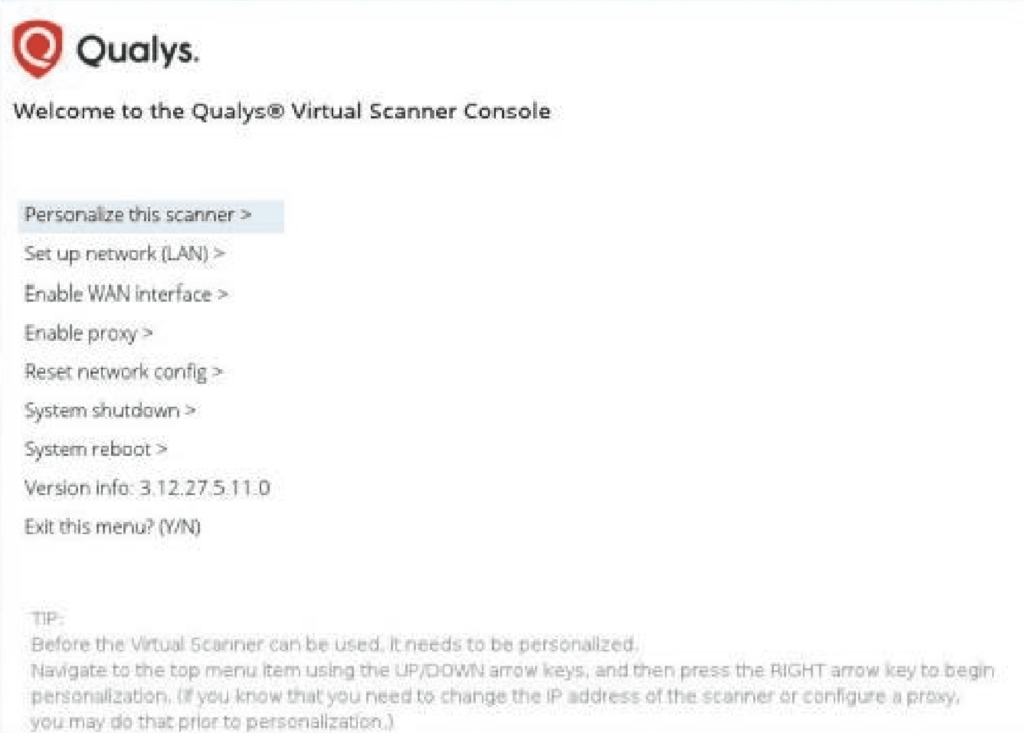
- Press the right arrow to select “Personalize this scanner” and then type in the personalization code. The following messages will appear:
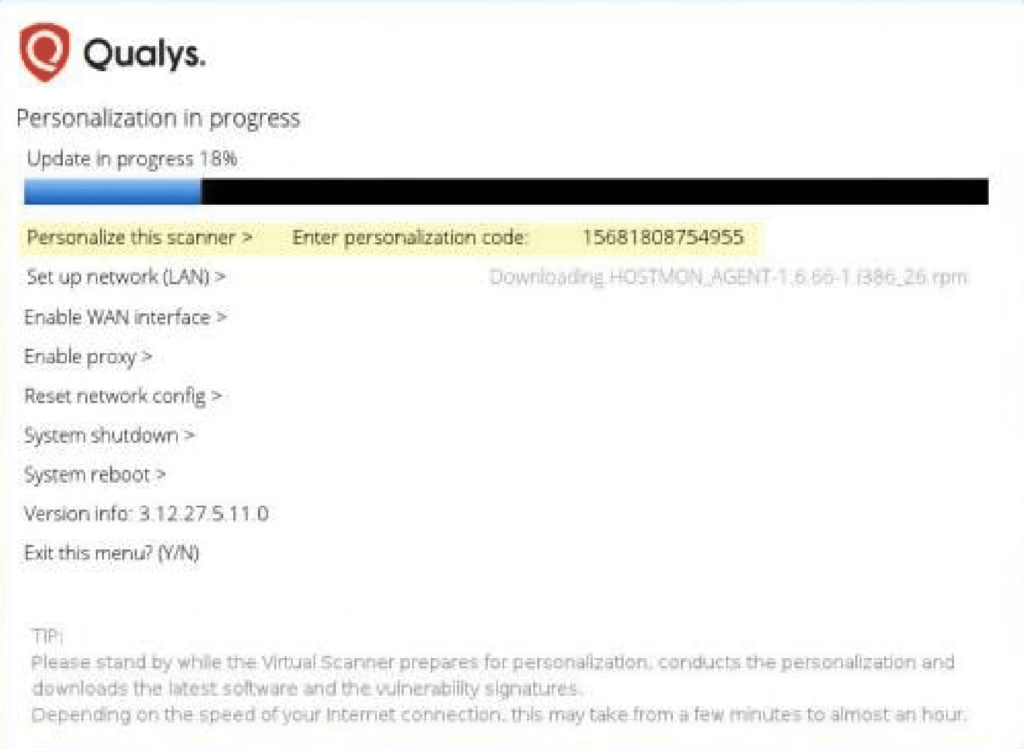
5. After successfully configuring the Virtual Scanner Appliance, the below is an example of what will appear on the User Interface(UI)